Copier Management Software - Copier Tracking System Knowledge Base
|
|
1. |
|
|
|
|
2. |
Copier Tracking System -- Copier Management Software Online Demo |
|
|
|
|
1. Setup Virtual Cash Controller (VCC) 2.
Debit
Mode |
|
| 1. | Copier Tracking System --- Components | ||
|
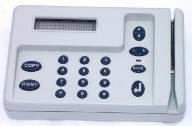
Copier Tracking Software (Required) is a powerfully centralized copy manager & copy counter that helps automate and simplify the administration of copier or MFC (Multi-Functional Copier). It is easy to use copy management software that allows you to monitor and track all copying activity, charge the copy jobs by entering the account number (PIN), control and authenticate who is copying, how much is being copied, analyze and identify the cost of copying and eliminate wasted paper across your entire organization. It has the debit mode and credit mode. In the debit mode, Copier Tracking Software keeps track of account quotas (number of copies assigned to users) or balance. When user quotas are exceeded, copy jobs are automatically canceled. In credit mode, if the number of copies exceeds the maximum allowable limit per copy session specified for a copier, copy jobs are automatically canceled. In both modes, the software keeps track of each copy made and store them in the database including name of the user who copy, destination copier name, number of copies made, total cost, copy request time and date. Virtual Cash Controller hardware (Required) The VCC hardware is connected to a copier or MFC (Multi-Functional Copier) to enable or disable copier machine. It lets you eliminate propriety debit cards and migrate to an online, account-based system that automatically tracks activity at all your copiers in a single database. The copier interface supports major brands. For more information, please contact support@printeradmin.com.
|
|||
|
|
|
|
|
|
|
|
|
|
| 2. | Copier Tracking System --- Online Demo | ||
|
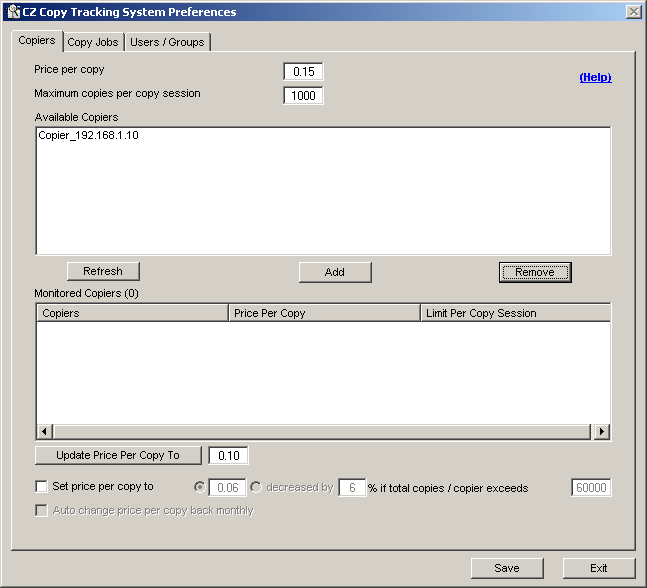
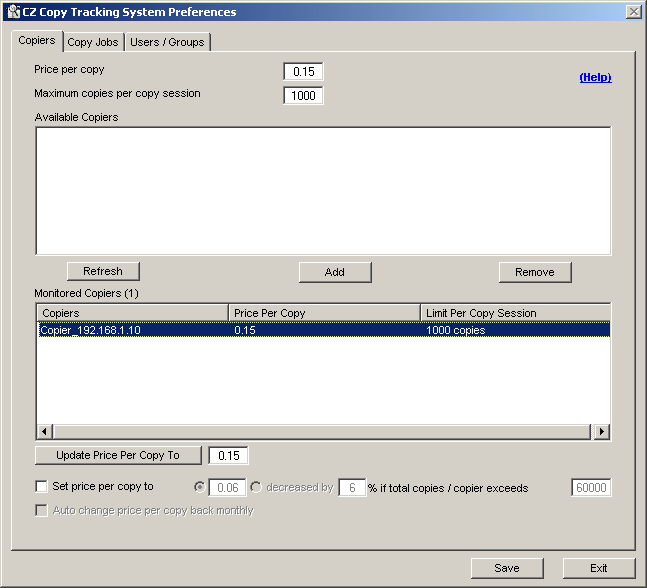
1. Set up Virtual Cash Controller (VCC) 1. Set up the VCC network setting including VCC IP address, subnet mask, gateway IP address, Server IP address, and others. Please check https://www.printeradmin.com/download/VCC_manual.pdf. Tip: For the Server IP address (or IP of the Print Server), enter the IP Address of the computer that has Copier Tracking Software is installed. 2. The VCC will be connected to Copier Tracking Software and added to the list of available copiers in Preferences --> Copiers automatically when VCC and the computer that has Copier Tracking Software installed are in the same network.
3. Click Add button to add Copier to the list of monitored copiers.
1. In Preferences --> Copy Jobs, select "Enable balance tracking".
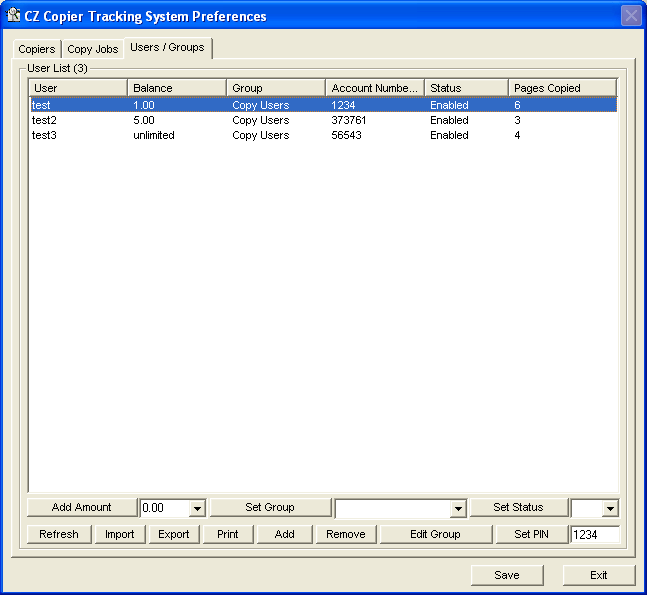
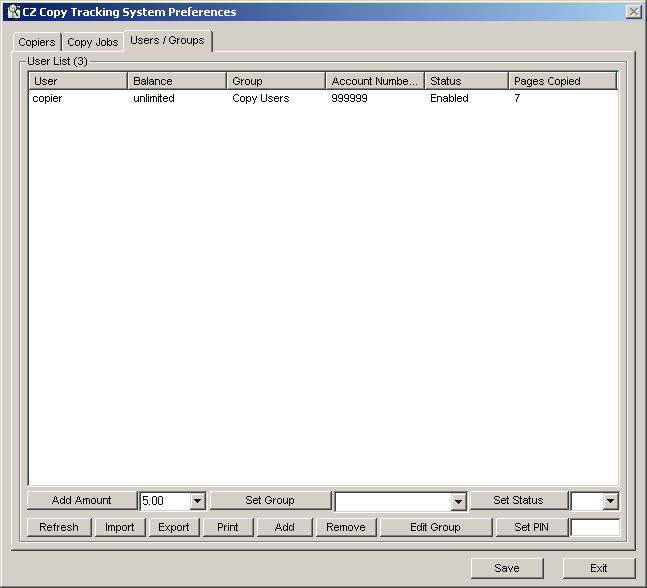
2. In Preferences --> Users/Groups, create the username and account number (PIN), then assign the quota.
3. In Virtual Cash Controller (VCC), it shows "Please enter the account number".
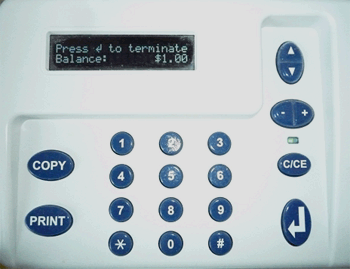
4. In Virtual Cash Controller (VCC), enter account number "1234", VCC shows the balance of $1.00 and enable the copier.
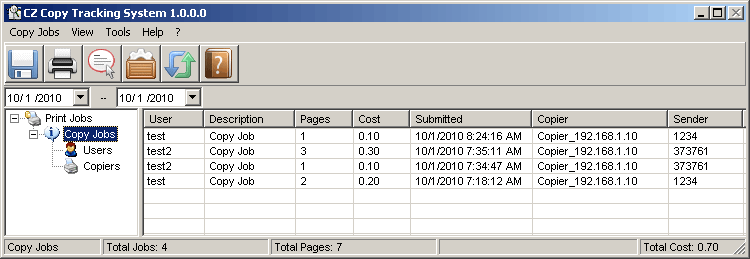
5. After copying is done, the copier is disabled by VCC and the name of the user who copy, destination copier name, the number of copies made, total cost, copy request time, and date are stored in the database. If the user enter the incorrect account number or account number doesn't have enough balance, then VCC goes back to "Please enter account number" screen.
1. In Preferences --> Copy Jobs, uncheck "Enable balance tracking", then click Save button.
2. In VCC, it shows "Press COPY button to copy".
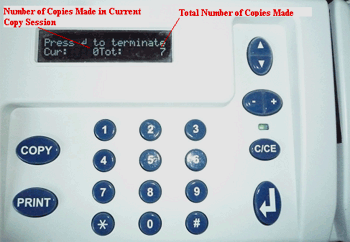
3. Press the COPY button, it shows the total number of copies made before and the number of copies made in the current copy session.
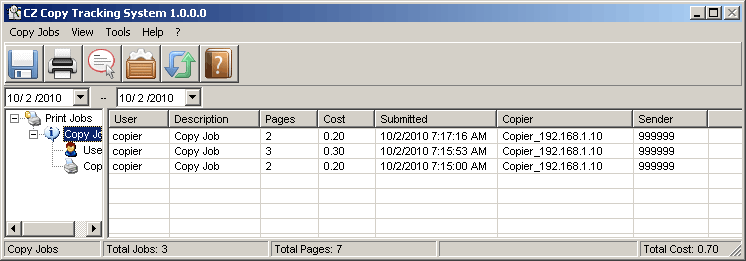
4. After copying is done, the name of the user who copy, destination copier name, number of copies made, total cost, copy request time, and date are stored in the database. If the number of copies exceeds the maximum allowable limit per copy session specified for a copier, copy jobs are automatically canceled, and copier is disabled by VCC.
5. In Preferences --> Users/Groups, the user 'copier' is created automatically if it doesn't exist.
|