printer management, printer monitor, printer count software


Business


Business


Libraries


Client Billing


Download


Licensing & Pricing


Step by Step Configuration -- Print Authentication by User Account and PIN

You require users to enter user account / PIN before the print jobs will print.

Option 1: Users send print jobs to the shared printers on the print servers (\\printserver\printer)

Option 2: Users send print jobs to the printer directly via the IP address of the printer or the printer that is connected to their workstations locally via cable (USB, LPT or others)

Option 3: Users send print jobs to the shared printers on the print servers (\\printserver\printer). Users also send print jobs to the printer directly via the IP address of the printer or the printer that is connected to their workstations locally via cable (USB, LPT or others).

Option 1: Users send print jobs to the shared printers on the print servers (\\printserver\printer).

Step 1. Follow the instructions in PrinterAdmin Print Job Manager 6.0 Demos -- Printer Tracking / Monitoring in Print Server Environment to setup the printer.  If you have already done that, skip this step.

Step 2. In PrinterAdmin Print Job Manager 6.0 menu item "Preferences --> Advanced," select the following options:
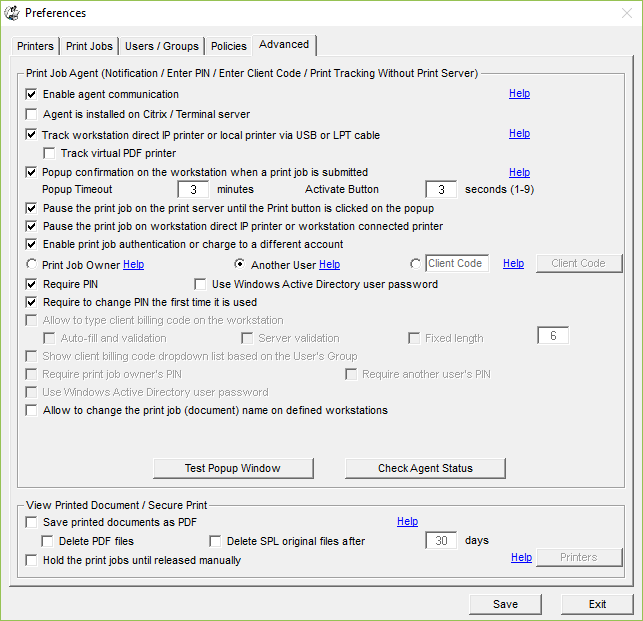
  • Popup confirmation on the workstation when a print job is submitted

  • Pause the print job on the print server until the Print button is clicked on the popup

  • Enable Print Job Authentication or charge to a different account

  • Another User

  • Require PIN


Go to step 3


Option 2: Users send print jobs to the printer directly via the IP address of the printer or the printer that is connected to their workstations locally via cable (USB, LPT or others).

Step 1. Follow the instructions in PrinterAdmin Print Job Manager 6.0 Demos -- Printer Tracking / Monitoring in Non Print Server Environment how to setup the agent. If you have already done that, skip this step.

Step 2. In PrinterAdmin Print Job Manager 6.0 menu item "Preferences --> Advanced," select the following options:

  • Track workstation direct IP printer or workstation connected printer via USB or LPT cable

  • Popup confirmation on the workstation when a print job is submitted

  • Pause the print job on workstation direct IP printer and workstation connected printer

  • Enable Print Job Authentication or charge to a different account

  • Another User

  • Require PIN


Go to step 3


Option 3: Users send print jobs to the shared printers on the print servers (\\printserver\printer). Users also send print jobs to the printer directly via the IP address of the printer or the printer that is connected to their workstations locally via cable (USB, LPT or others).

Step 1. Follow the instructions in PrinterAdmin Print Job Manager 6.0 Demos -- Print Tracking / Auditing in Mixed Print Server and Non Print Server Environment to setup the printer. If you have already done that, skip this step.

Step 2. In PrinterAdmin Print Job Manager 6.0 menu item "Preferences --> Advanced," select the following options:

  • Track workstation direct IP printer or workstation connected printer via USB or LPT cable

  • Popup confirmation on the workstation when a print job is submitted

  • Pause the print job on the print server until the Print button is clicked on the popup

  • Pause the print job on workstation direct IP printer and workstation connected printer

  • Enable Print Job Authentication or charge to a different account

  • Another User

  • Require PIN

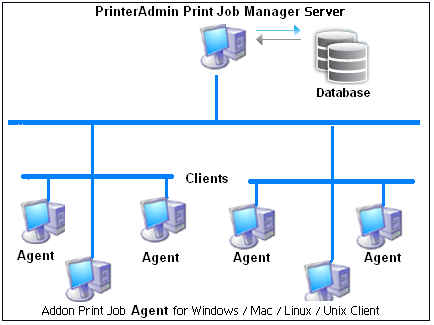
Step 3. Install Print Job Agent on workstations (Windows, Mac OSX / Classic, or Linux client computer) that require the confirmation before the print jobs will print.

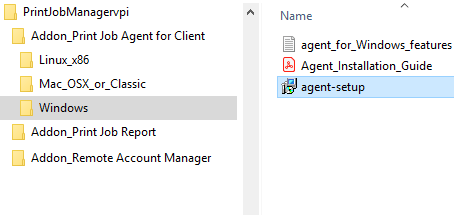
For example, to install Print Job Agent on Windows workstations, Copy "Print Job Agent.msi" to the network share or client computer, double click "Print Job Agent.msi" to install the agent. The add-on Print Job Agent can also be installed silently using Windows Group Policy.

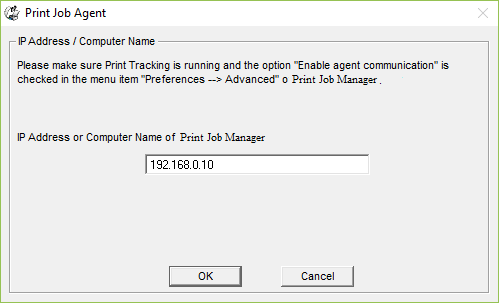
Step 4. Click Start -> All Programs -> Print Job Agent -> Print Job Agent 1.0 to run the agent. Enter the computer name or the IP Address of the computer that has PrinterAdmin Print Job Manager installed.

Note:

1. Print Job Agent will be started automatically when user login next time.

2. Modify Print Job Agent.msi package to include the name or IP address of the computer where you installed PrinterAdmin Print Job Manager 6.0, so you don't have to enter it manually when you run Print Job Agent the first time on each workstation. Visit Step 1 of Windows Group Policy how to Orca to modify Print Job Agent.msi .

Step 5. When users print, they can either click Print button on the popup window to print the job or Cancel button to cancel the job.

Note:

1. If the popup doesn't appear, see FAQ 3.

2. The "enable batch print mode" can be selected to hide the popup, so users don't have to enter their user name and PIN every time when they print. You can also define the computers to enable batch print mode only for some specific users.


Back To Top


  Copyright © 2012 Printer Admin - Software All Rights Reserved. Our mission is to provide you easy-to-use print management tool.