How to use Group Policy to to define software (Print Job Agent) exception in Windows Firewall Settings
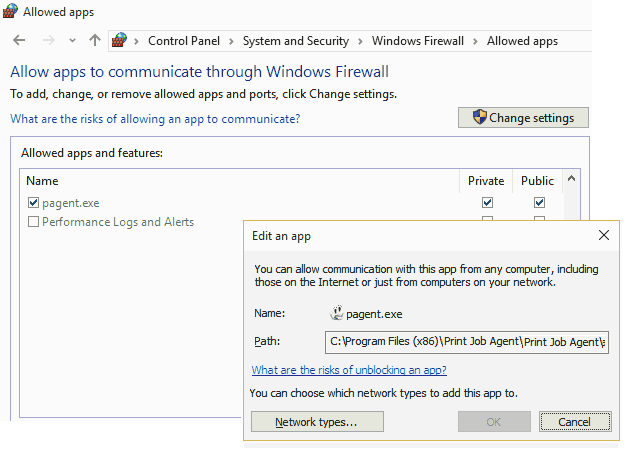
The local firewall settings on Windows may prevent agent from connecting to server (Print Job Manager). Normally when agent is installed and it is run the first time, it will be added to the exceptions automatically. If not, lease add "pagent.exe" (e.g., C:\Program Files\PrinterAdmin\Print Job Agent\pagent.exe) exception in firewall settings (Control Panel -> Windows Firewall). You can also use group policy to add pagent.exe to the exceptions of Firewall settings on multiple computers at one time at https://www.printeradmin.com/agentexception/ .
The best way to manage Windows Firewall settings in an organization network is to use Active Directory and the new Windows Firewall settings in Computer Configuration Group Policy. This method requires the use of Active Directory with Windows Server domain controllers. Group Policy updates are requested by the domain member computer, and are therefore solicited traffic that is not dropped when Windows Firewall is enabled.
Step 1: Updating Your Group Policy Objects With the New Windows Firewall Settings
To update your Group Policy objects with the new Windows Firewall settings using the Group Policy snap-in (provided with Windows XP), do the following:
- Install Windows XP SP2 on a computer that is a member of the domain that contains the computer accounts of the other computers running Windows XP on which you plan to install Windows XP SP2.
- Restart the computer and log on to the Windows XP with SP2-based computer as a member of the Domain Administrators security group, the Enterprise Administrators security group, or the Group Policy Creator Owners security group.
- From the Windows XP desktop, click Start, click Run, type mmc, and then click OK.
- On the File menu, click Add/Remove Snap-in.
- On the Standalone tab, click Add.
- In the Available Standalone Snap-ins list, click Group Policy Object Editor, and then click Add.
- In the Select Group Policy Object dialog box, click Browse.
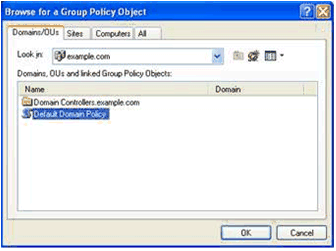
- In the Browse for a Group Policy Object, click the Group Policy object that you want to update with the new Windows Firewall settings. An example is shown in the following figure.
- Click OK.
- Click Finish to complete the Group Policy Wizard.
- In the Add Standalone Snap-in dialog box, click Close.
- In the Add/Remove Snap-in dialog box, click OK.
- In the console tree, open Computer Configuration, Administrative Templates, Network, Network Connections, and then Windows Firewall. An example is shown in the following figure.
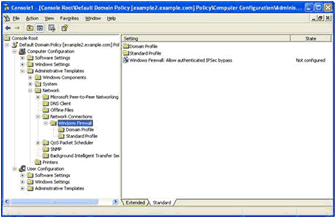
Repeat this procedure for every Group Policy object that is being used to apply Group Policy to computers that will have Windows XP SP2 installed.
Note To update your Group Policy objects for network environments using Active Directory and Windows XP SP1, Microsoft recommends that you use the Group Policy Management Console, a free download. For more information, see Group Policy Management Console with Service Pack 1.
Step 2: Specifying Windows Firewall Settings for Your Group Policy Objects
After a Group Policy object has been updated, it can be configured for Windows Firewall settings that are appropriate for Windows Firewall and the use of management, server, listener, or peer applications and services that are being run on your computers running Windows XP with SP2.
There are two sets of Windows Firewall settings to configure:
- The domain profile settings that are used by the computers when they are connected to a network that contains domain controllers for the domain of which the computer is a member.
- The standard profile settings that are used by the computers when they are connected to a network that does not contain domain controllers for the domain of which the computer is a member.
If you do not configure standard profile settings, their default values are still applied. Therefore, it is highly recommended that you configure both domain and standard profile settings and that you enable the Windows Firewall for both profiles, except if you are already using a third-party host firewall product.
As previously described, the standard profile settings are typically more restrictive that the domain profile because the standard profile settings do not need to include applications and services that are only used in a managed domain environment.
Both the domain profile and standard profile contain the same set of Windows Firewall settings, as shown in the following figure.
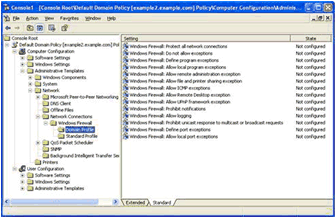
The Windows Firewall Group Policy settings for the domain and standard profiles consist of the following:
- Windows Firewall: Define program exceptionsUSed to define excepted traffic in terms of program file names.
Use the Group Policy snap-in to modify the Windows Firewall settings in the appropriate Group Policy objects. Note that you only need to modify Windows Firewall settings for Group Policy objects that are applied to Active Directory system containers (domains, organizational units, and sites) that contain computer accounts corresponding to computers that are or will be running Windows XP with SP2.
Once you configure the Windows Firewall settings, the next refresh of Computer Configuration Group Policy downloads the new Windows Firewall settings and applies them.
Windows Firewall: Define Program Exceptions
To enable exceptions for programs
| 1. | In either the
Domain Profile or the Standard
Profile settings area, double-click Windows
Firewall: Define program exceptions. The following
dialog box will display.
|
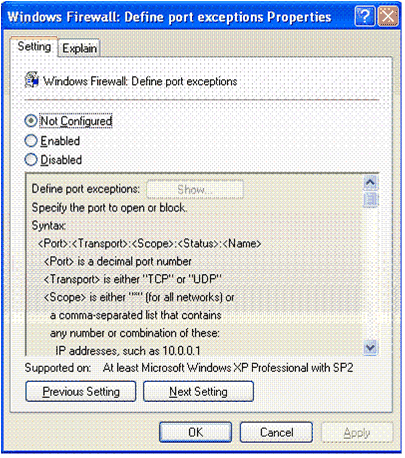
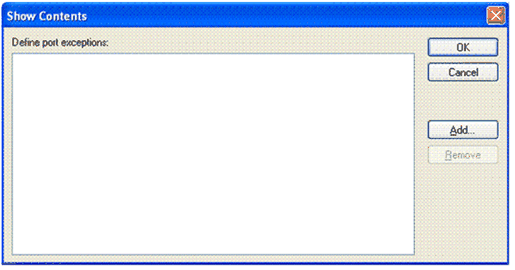
| 2. | Select Enabled, and then click Show. The Show Contents dialog box (shown in the following screen shot) will display. | ||||||||
| 3. | Click
Add, and the Add Item dialog box
will display. Type the information about the program that
you want to block or enable. The syntax is as follows: path:scope:status:name
%ProgramFiles%\PrinterAdmin\Print Job Agent\pagent.exe:*:Enabled:pagent
|
||||||||
| 4. | After you enter the information, click OK to close the Add Item dialog box. The Show Contents dialog box (shown in the following screen shot) will display. | ||||||||
| 5. | Click OK to close the Show Contents dialog box. | ||||||||
| 6. | Click OK to close Windows Firewall: Define program exceptions Properties. |
Verifying Windows Firewall Settings Are Applied
You will need the following to complete this task:
| • | Credentials. You must be logged on to a Windows XP SP2 computer that is an Active Directory domain client, and you must use an account that is a member of the Domain Users group. |
To verify Windows Firewall settings are applied
| 1. | From the Windows XP SP2 desktop, click Start, and then click Control Panel. |
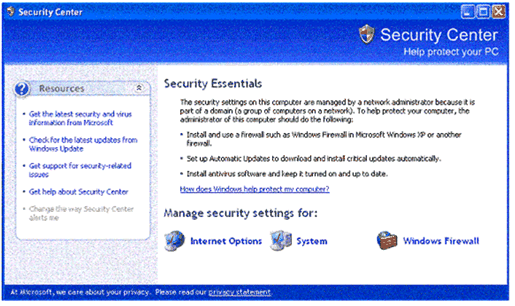
| 2. | Under Pick a category, click Security Center. A screen similar to the following will display. |
| 3. | Under Manage security settings for, click Windows Firewall. |
| 4. | Click the General, Exceptions, and Advanced tabs, and verify that the configuration in Group Policy is also applied to Windows Firewall on the client computer |
.gif)
.gif)
.gif)