Online Demo -- Print Release Station User-Mode with Credit Card Payment
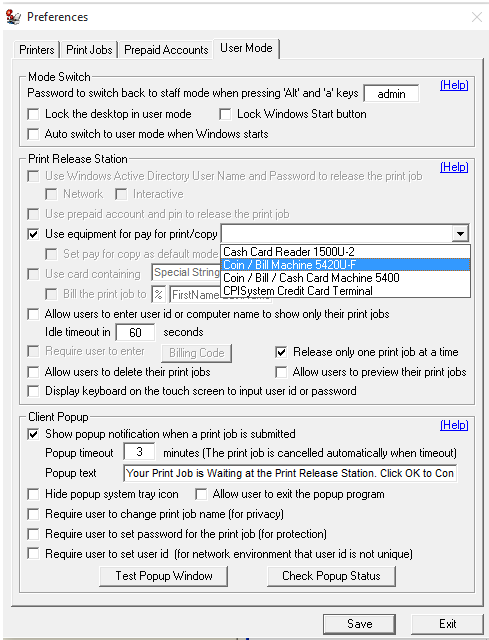
Step 1. In Preferences --> User Mode, select “Use self payment equipment".
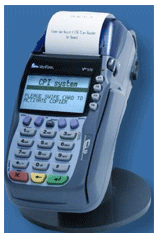
Print Release Station can work with CPI credit card terminal at http://www.cpisystem.com . For more information, please contact Basil Makhoul at 1-321-775-3959 or email basil@cpisystem.com .
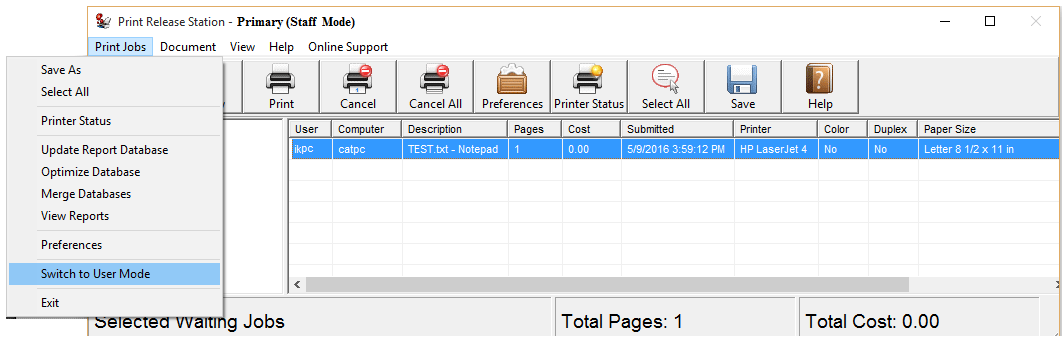
Step 2. In Menu Print Jobs, click "Switch to User Mode". You can switch back to Staff Mode by pressing "Alt" and "a" keys together, then enter the password defined in Preferences --> User Mode.
Scenario
1. A user sends a print job from a workstation.
2. Print Release Station holds the print job with detail print job information.
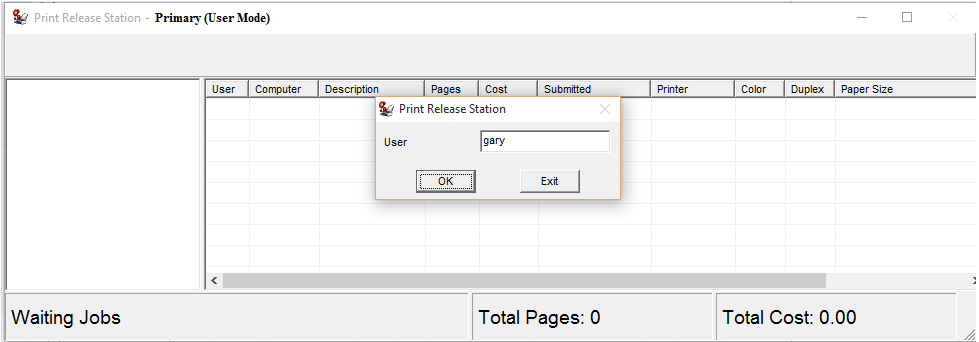
3. The user goes to the Print Release Station and types the user ID to show only his/her print job. The users can also scan their ID card to input their user ID with a barcode scanner or card reader.
4. The user selects the print job, clicks Print button, makes payment with a credit card to release the print job. The printing activity is tracked and saved to the database.