Online Demo -- Print Release Station User Mode with Free Print Quotas
Step 1. In Preferences --> Print Jobs, select either “Free printing for the first ## pages per day per person" or "Free printing for the first ## pages per term per person". In Preferences --> User Mode, select "Lock the desktop in user mode" to lock Print Release Station computer in user mode and select "Auto switch to user mode when starting the application" to switch to user mode automatically when Print Release Station starts.

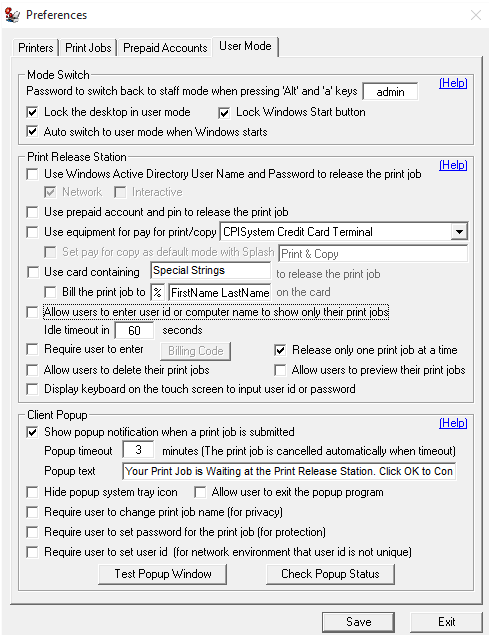
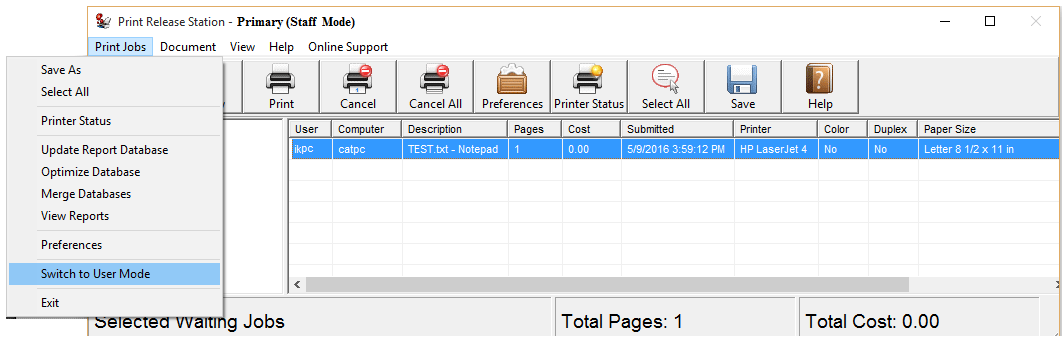
Step 2. In Menu Print Jobs, click "Switch to User Mode". You can switch back to Staff Mode by pressing "Alt" and "a" keys together, then enter the password defined in Preferences --> User Mode.
Scenario
1. A user sends a print job from a workstation.
2. Print Release Station holds the print job with detail print job information.
3. The user goes to the Print Release Station to release the print job. The job will not be printed out if the user's print quotas are not enough.