Online Demo -- Print Release Station User-Mode with Windows Active Directory Authentication
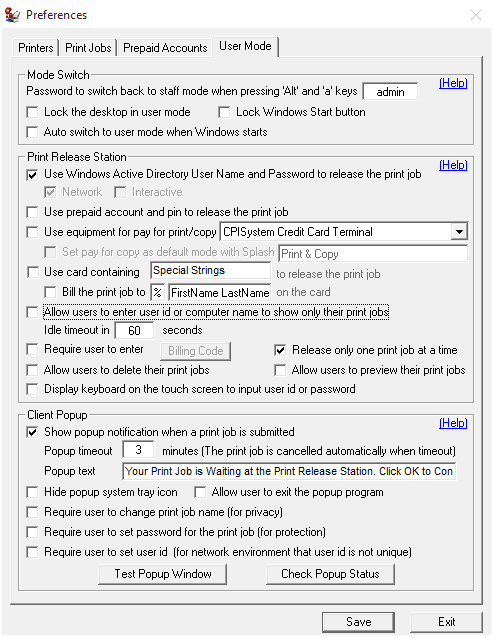
Step 1. In Preferences --> User Mode, select “Use Windows Active Directory User Name and Password to release the print job”.
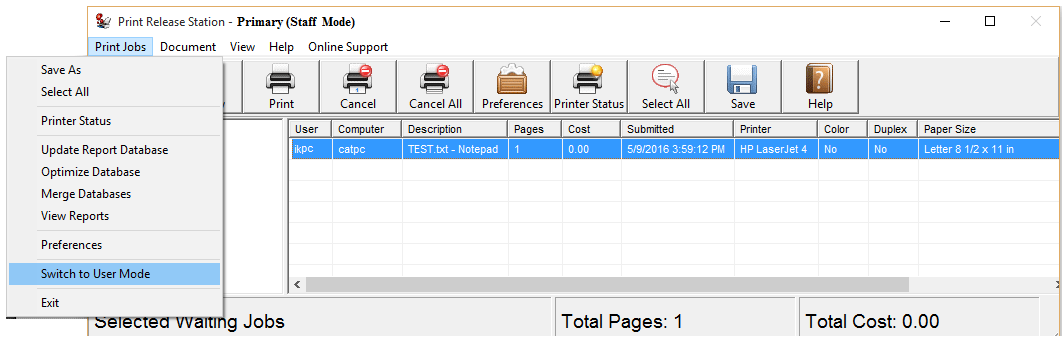
Step 2. In Menu Print Jobs, click "Switch to User Mode". You can switch back to Staff Mode by pressing "Alt" and "a" keys together, then enter the password defined in Preferences --> User Mode.
Scenario
1. A user sends a print job from a workstation.
2. Print Release Station holds the print job with detail print job information, but the job is not shown on the screen.

3. The user goes to the Print Release Station and enters the Windows Active Directory username and password to show and release only his/her print job.